
Standard search
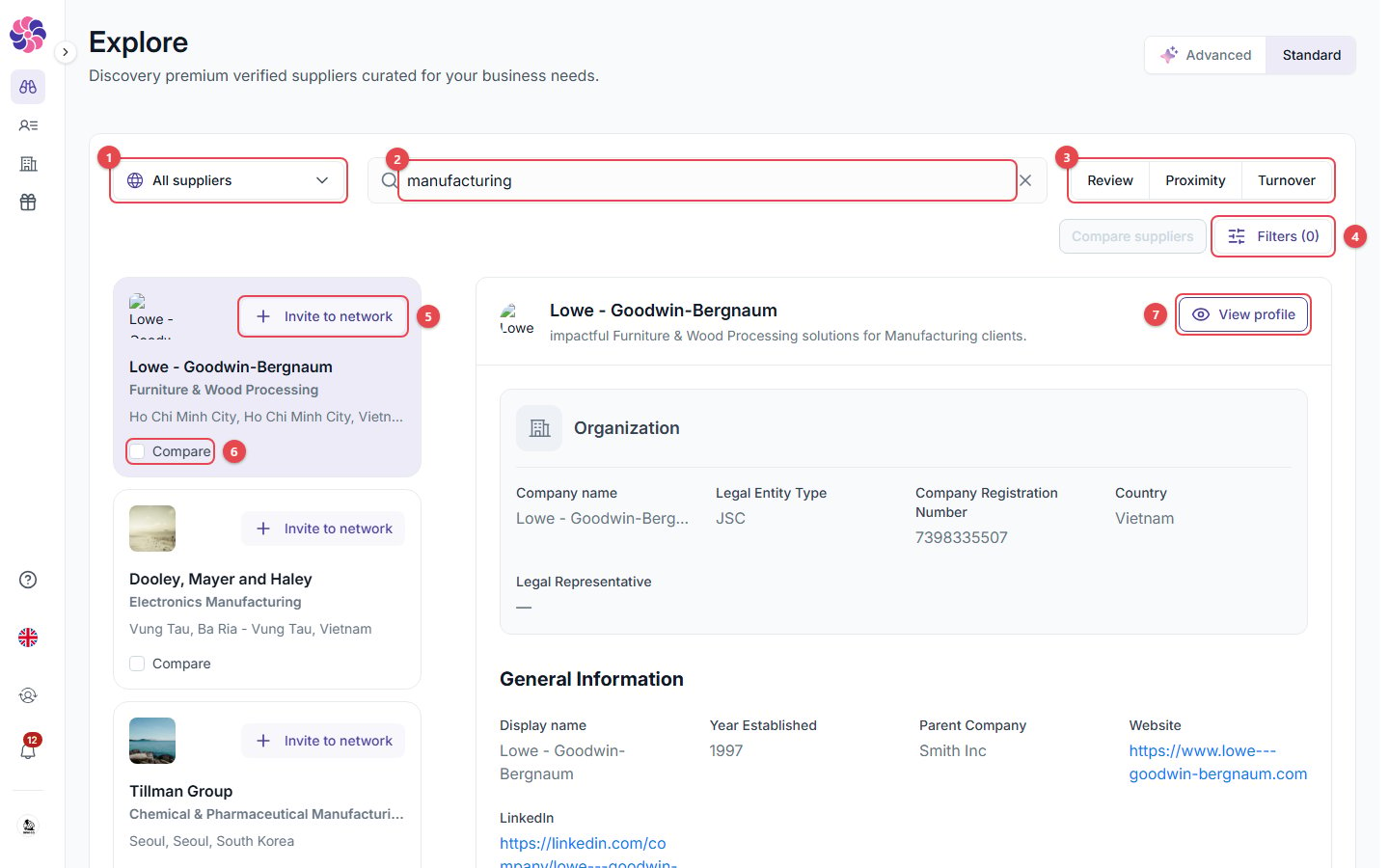
- Search scope: where to search (see below).
- Search by keyword: type a product, service or company name and press Enter.
- Sort by Review, Proximity or Turnover.
- Filters: narrow down the results.
- Invite to network: invite this supplier to your portal.
- Compare: tick suppliers to compare them side by side.
- View profile: open the supplier’s full profile. The panel on the right is a quick preview of the selected result.
Search scope
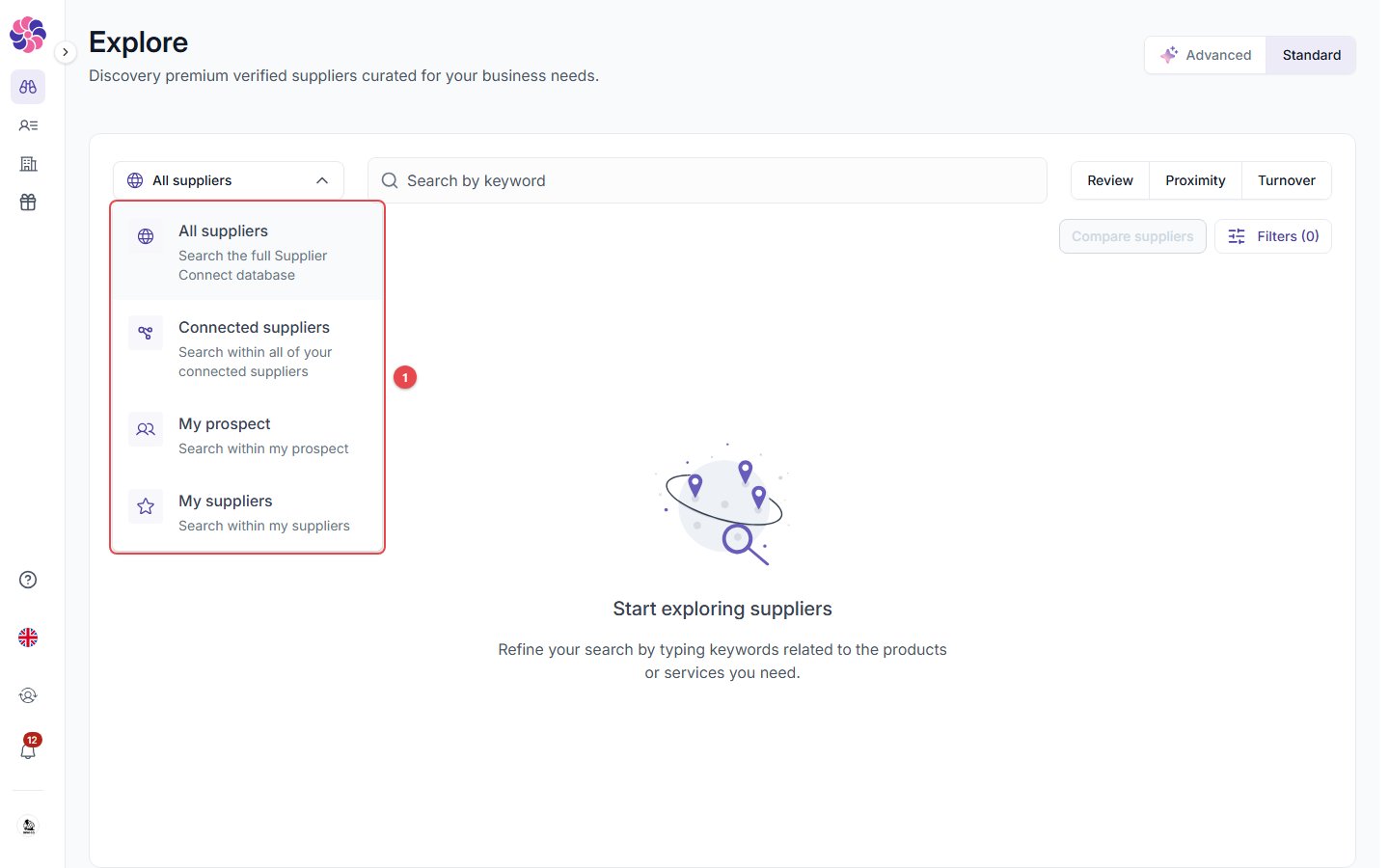
- All suppliers: the whole database.
- Connected suppliers: everyone in your portal.
- My prospect: suppliers that accepted but haven’t been moved to My supplier.
- My suppliers: your active suppliers.
Filters
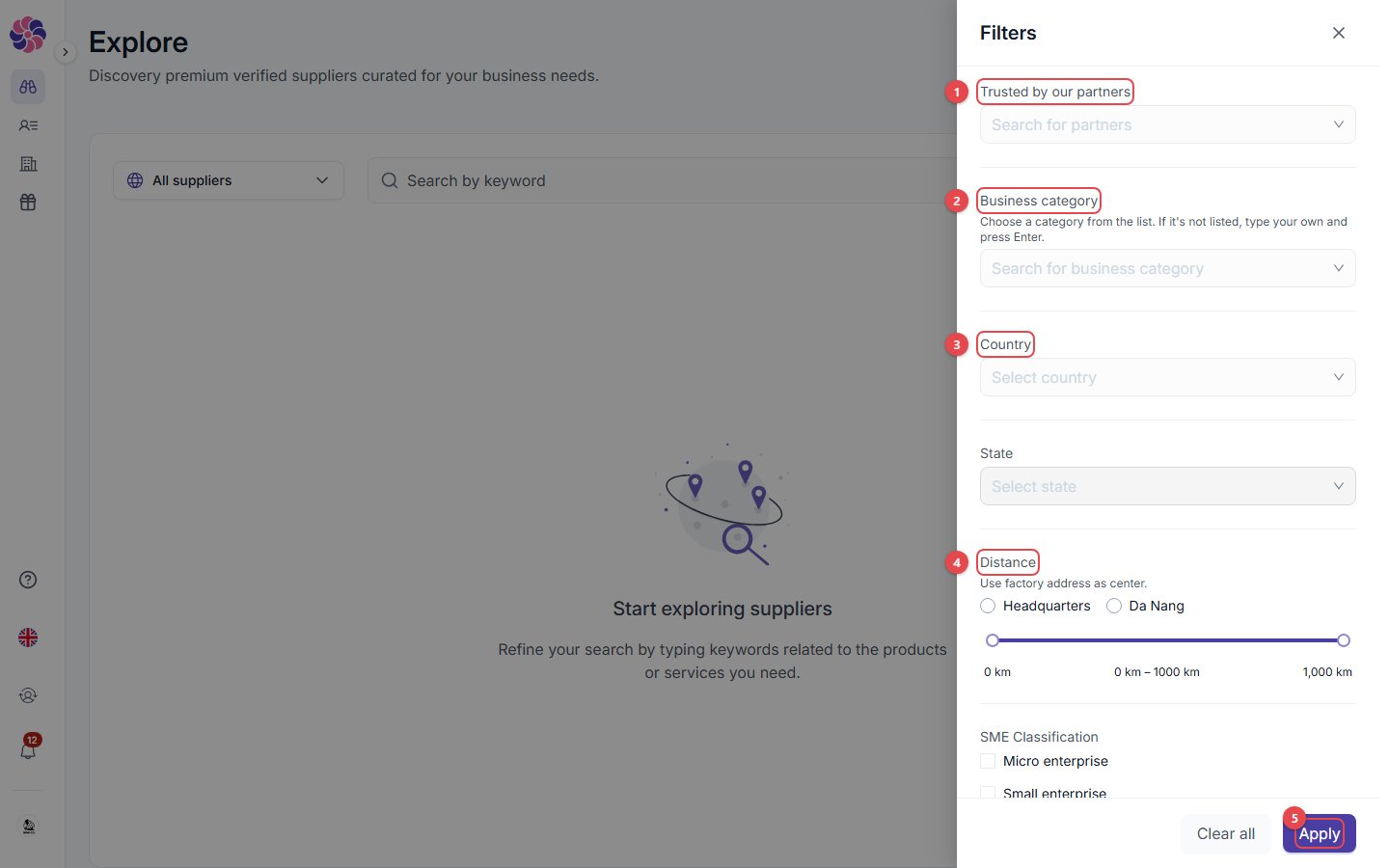
- Trusted by our partners: limit results to suppliers trusted by the partners you pick.
- Business category: pick from the list, or type your own and press Enter.
- Country and State.
- Distance: from your headquarters or one of your locations, from 0 to 1,000 km.
- Apply: apply the filters.
Advanced (AI) search
Click Advanced at the top right. Describe what you need in plain language, or click one of the Suggestions.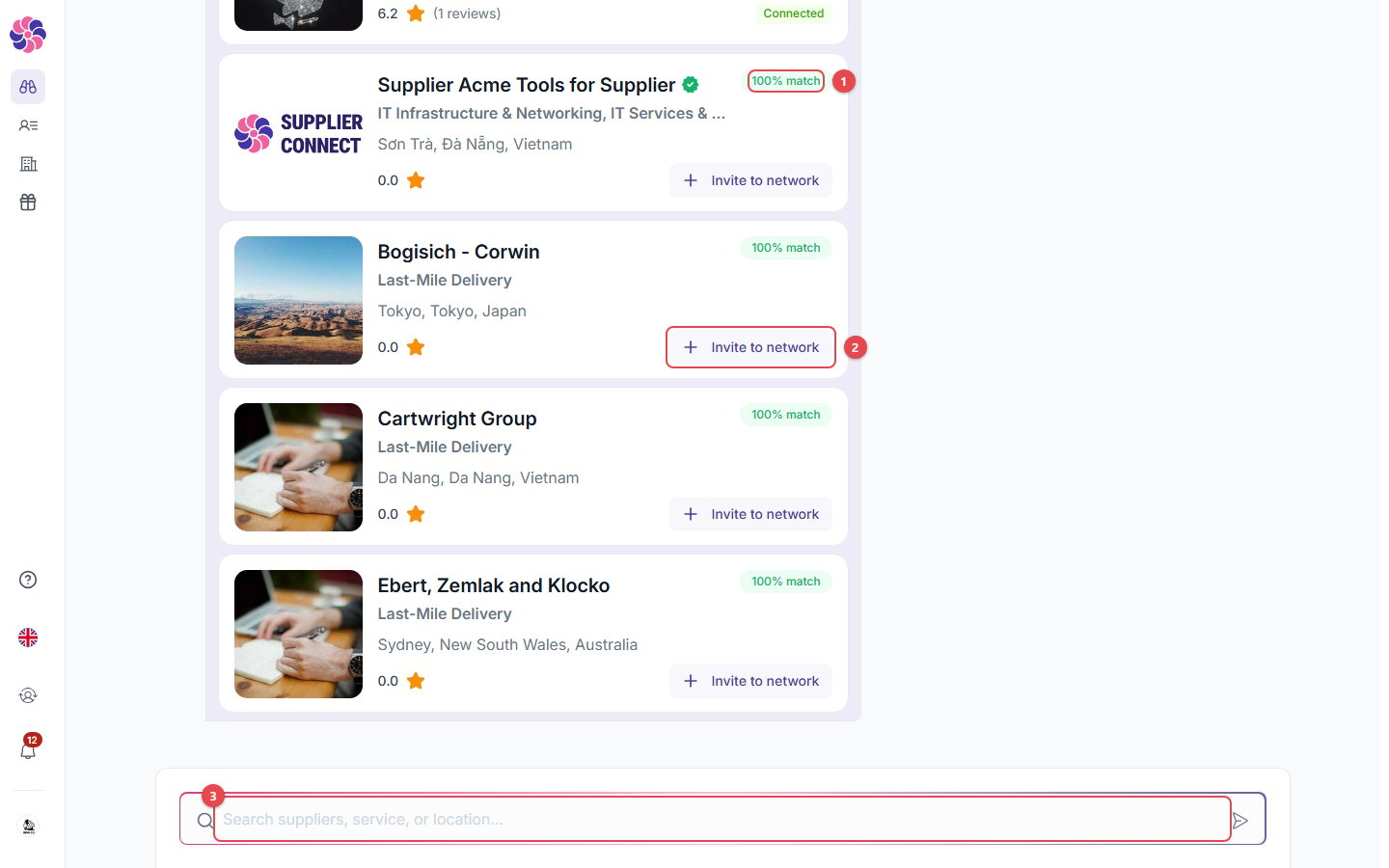
- % match: how well each supplier matches your request.
- Invite to network: invite the supplier straight from the results.
- Search box: ask a follow-up or a new question. Clear Chat (at the top of the conversation) starts over.
The AI search can take a little while. It shows Thinking… until the results are ready.
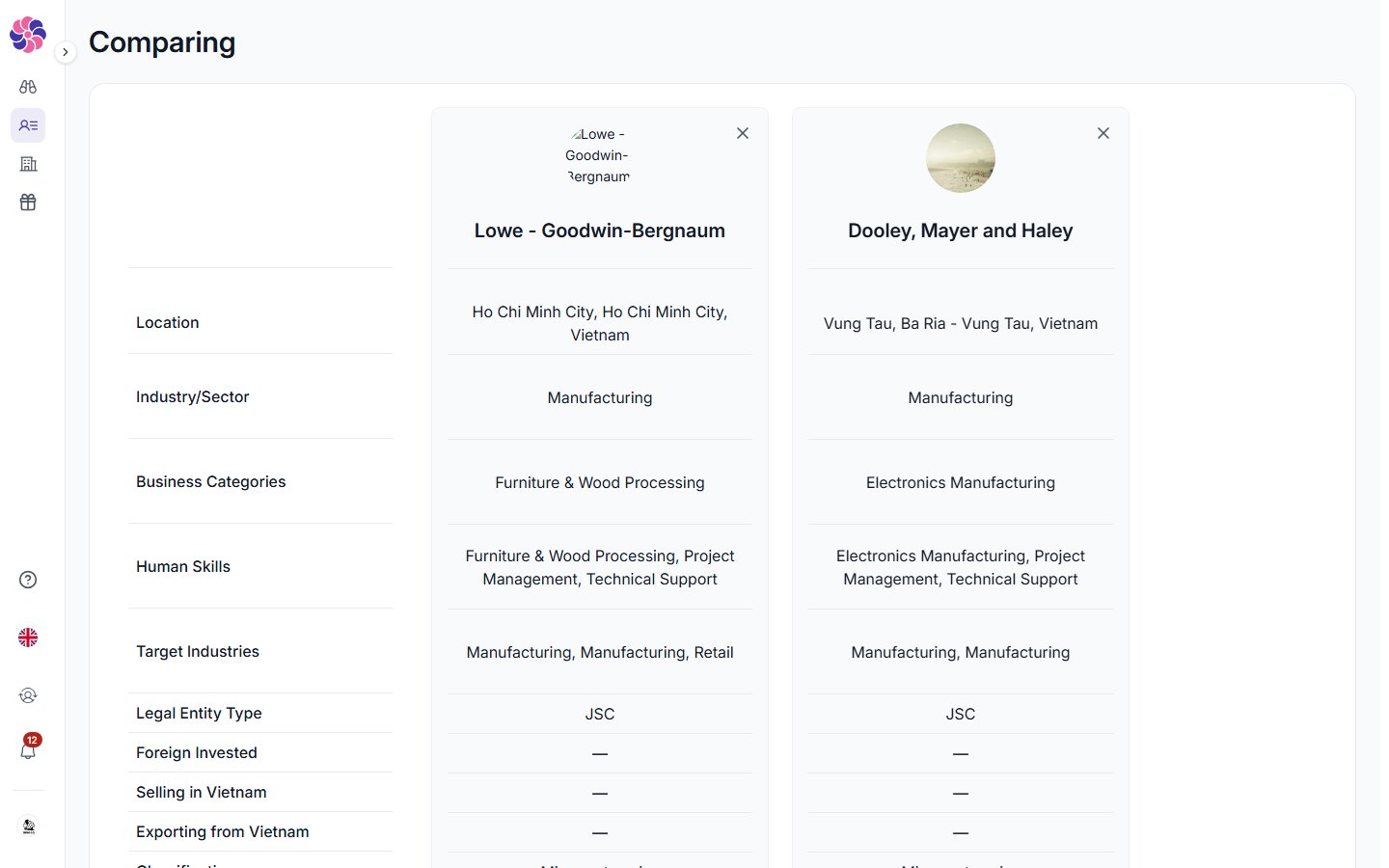
Compare suppliers
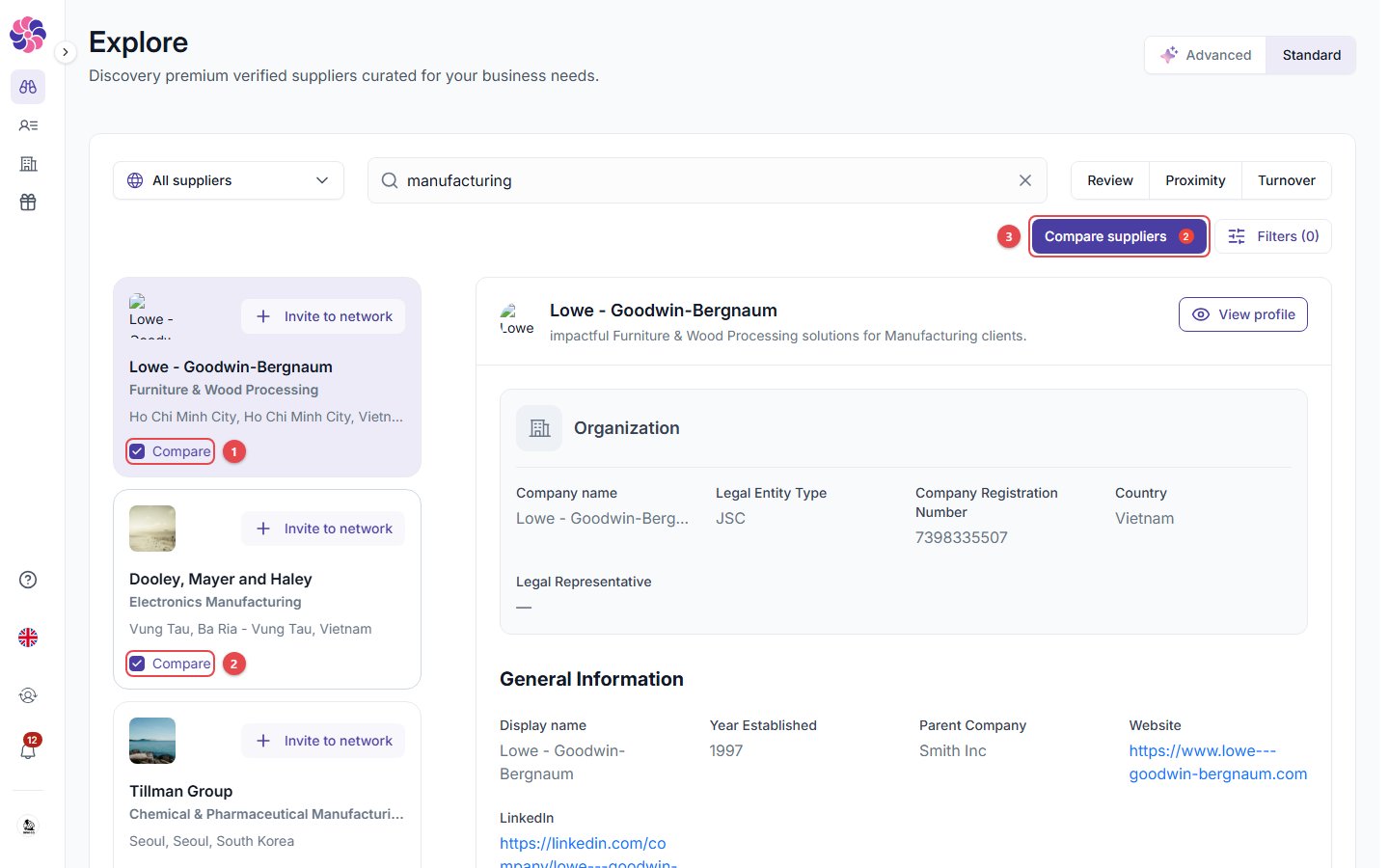
- Tick Compare on 2 or more suppliers.
- Click Compare suppliers (the badge shows how many are selected), then View comparison.
A supplier’s profile
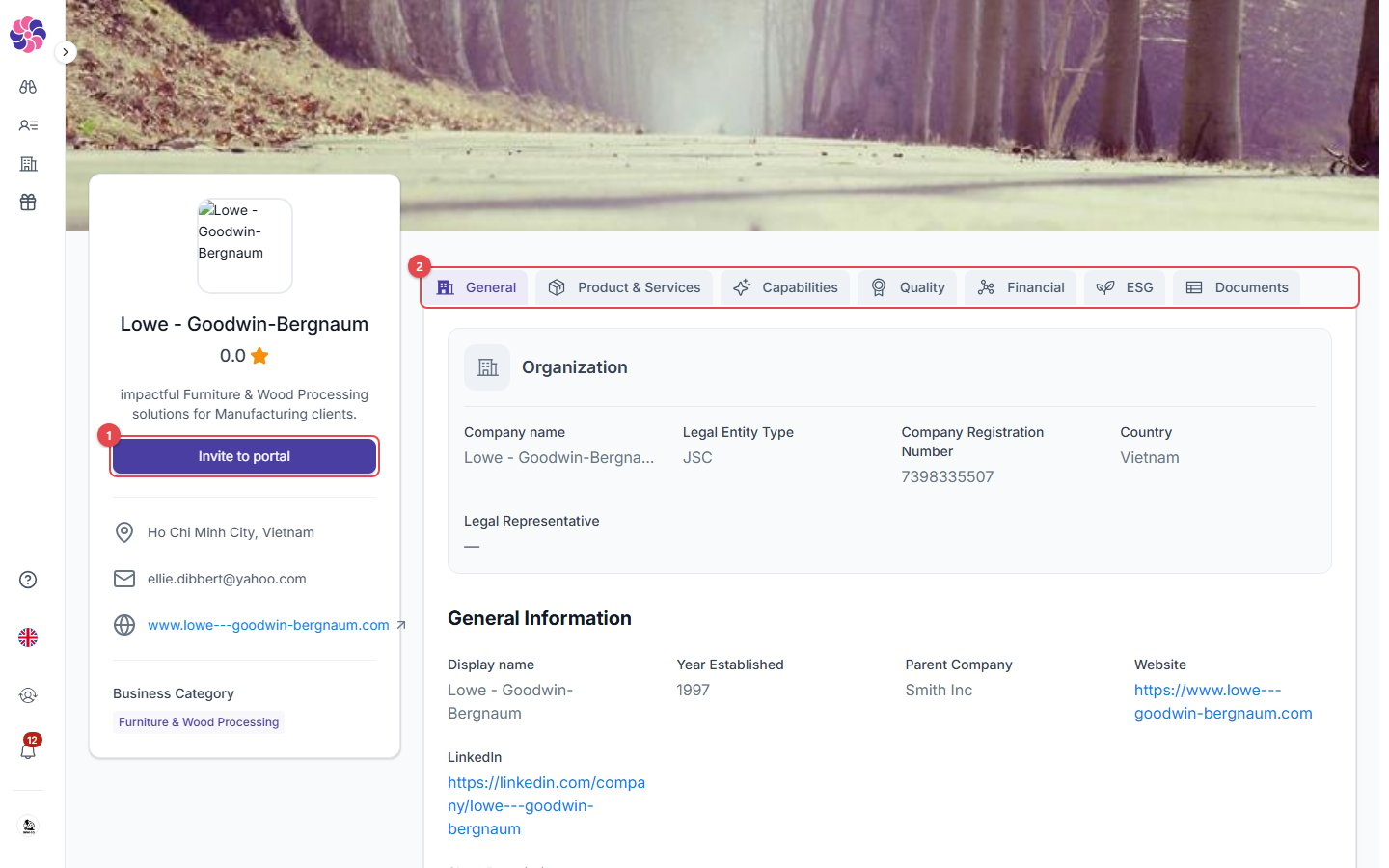
- Invite to portal: send this supplier an invitation, optionally with an NDA.
- Profile tabs: the same sections the supplier fills in. Some details show Connect to unlock until the supplier accepts your invitation. Suppliers with a green ✓ badge are verified by the Supplier Connect team.